Workspaces
Intro
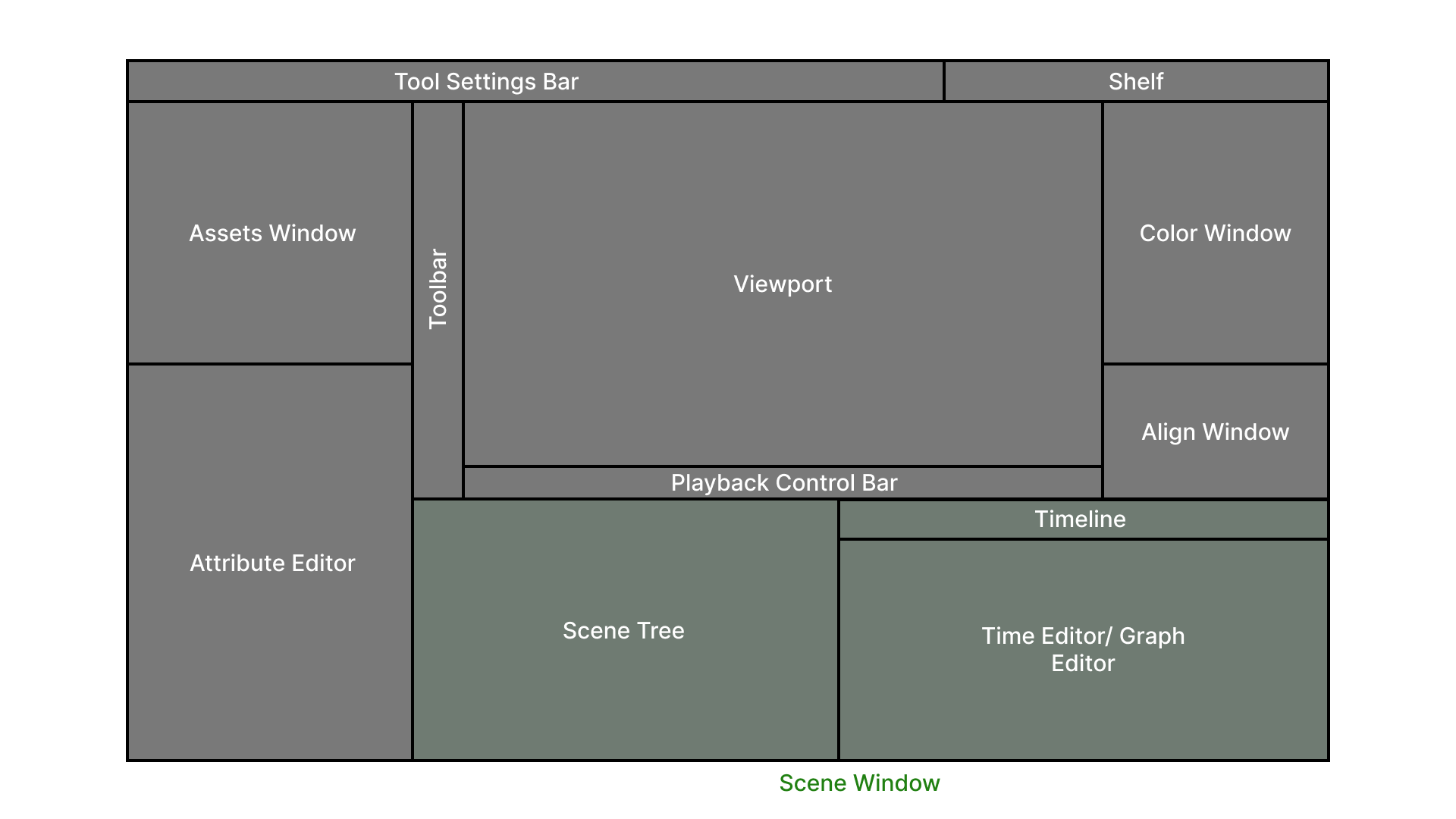
Cavalry's default Workspace consists of various Windows but it's possible to set up and save custom Window layouts for context specific tasks. This can be useful when switching focus between drawing/ rigging/ animating/ etc. in order to only display the UI elements required for each specific task.
Saving a Workspace
To save a Workspace:
- Arrange the various Windows in a layout of your preference.
- Window > Save Workspace...
- Give the Workspace a name and save.
The Workspace just saved will now appear under Window > Workspaces > <yourSavedWorkspace>
Workspaces can be organised by saving them into folders/ directories. Each folder will appear as a 'category' when loading a Workspace. For example, /Workspaces/Animation/Character.json will appear as Workspaces > Animation > Character in the menu.
Loading a Workspace
To load a Workspace:
- Window > Workspaces > Choose a saved Workspace.
The Windows will rearrange based on the Workspace selected.
Updating a Workspace
Workspaces do not autosave – think of them more as a 'preset'. If you need to update an existing Workspace simply follow the steps to save a workspace and overwrite the existing workspace with the same name.
General
Workspaces are saved in:
- macOS -
~/Library/Preferences/Cavalry/Workspaces/ - Windows -
C:\Users\<USER>\AppData\Local\Cavalry\Workspaces\
On exiting Cavalry, the current layout will be saved and used the next time Cavalry is launched. This is the Active Workspace and is saved in:
- macOS -
~/Library/Preferences/Cavalry/workspace.json - Windows -
C:\Users\<USER>\AppData\Local\Cavalry\workspace.json
AppData and ~/Library are hidden folders. To find them:
- Windows - Check 'Hidden Items' in the View options for Explorer.
- macOS - In Finder, Library will appear if you hold Option/Alt when opening the Go menu.
Due to a known bug in macOS Ventura that affects dragging windows, the preview normally shown when repositioning a window has been temporarily disabled. This is a purely a visual issue so does not affect functionality. We have made Apple aware of the issue and hope to have it resolved soon.