Control Centre
Intro
The Control Centre is a place to promote the most important attributes in a Scene for quick and easy access. This can be particularly useful for rigging or sharing Scenes with colleagues or clients.
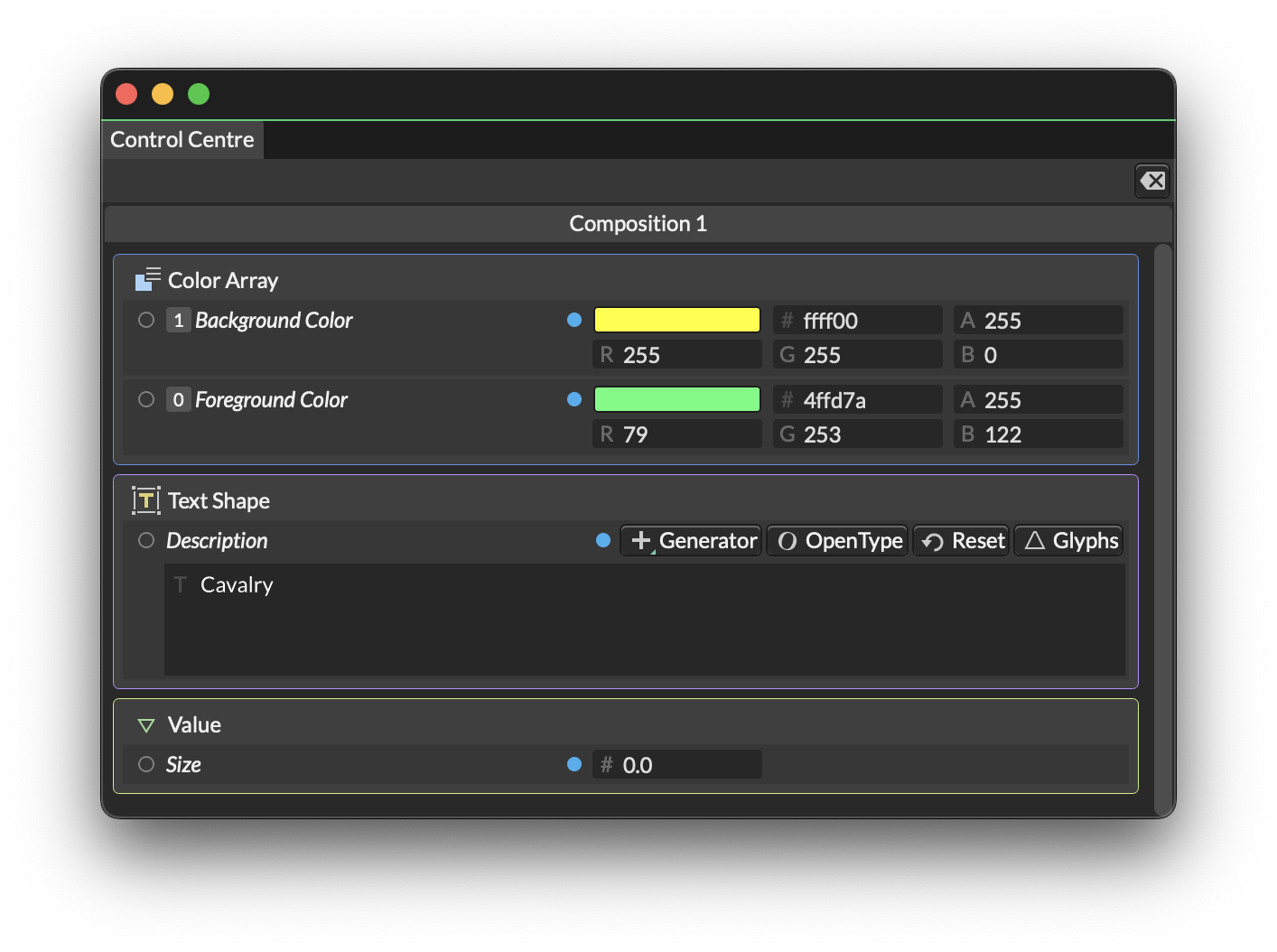
To add an attribute to the Control Centre, right click on an attribute in the Attribute Editor and select Add to Control Centre.
To remove an attribute from the Control Centre, right click on an attribute in the Control Centre or the Attribute Editor and select Remove from Control Centre.
When adding attributes to the Control Centre, a small blue dot will be added to the Attribute Editor's row.
UI
 - Add a new Group to the window which can be used to organise Attributes. Note that only hierarchy one level deep are supported – Groups cannot be grouped within other Groups.
Options - Use the  button to reveal the following options:
- Auto-Group by Source Layer - Create Groups for each Layer and place Attributes under their parent Layer's Group.
- Expand all Groups - Open all Groups.
- Collapse all Groups - Close all Groups.
- Clear Composition - Use this menu item to remove all Attributes from a specific Composition.
- Clear Control Centre - Remove all Attributes from the Control Centre.
Search - Use the search bar to filter for specific Attributes and Groups in the Control Centre window. Clear the search by clicking the x icon.
Filter - Open a list of Compositions which can be used to show/hide the corresponding Attributes.
Groups
Use the button on a Group's row to reveal the following options:
- Rename - Rename the Group.
- Ungroup - Remove the Group but retain any child Attributes.
- Delete Group - Remove the Group and any child Attributes from the Control Centre.
Reordering
Attributes and Groups can be reordered by dragging and dropping individual rows up and down in the stack. As an Attribute/Group is dragged, other Attribute/Group rows will visually 'split', creating a gap to drop an Attribute/Group into.
Reordering is prevented when a filter or search is active. Clear the search bar and ensure the (Select all) filter option is checked to enable reordering.
Tips
Isolate Individual Attributes
It's not possible to promote a single input of a multi-input row – for example, position.x from a Shape's Position attribute. To work around this, create a Value and connect value.id→shape.position.x and then promote the Value's value attribute to the Control Centre.
Checkbox
Any checkbox Attribute row can be added to the Control Centre but there are scenarios where a custom checkbox may be required. For example, a light/dark mode switch. Any checkbox in a Layer's UI is a boolean that outputs a 0 or 1 so, by connecting a checkbox to another Attribute, those values can be used to affect a change. For example, by connecting the Active Attribute of an Animation Control Layer to the Index of a Color Array, the Active checkbox can be used to switch between index 0 and 1 of the Color Array.
The If/Else Utility can also be used to create custom booleans.
Sliders
Any slider Attribute row can be added to the Control Centre but custom sliders can also be created by using the Edit Limits... feature. This is useful where a template requires a value that should not go outside of a specific range. The Step can also be used, for example, to convert a double Attribute (one with decimal places) into an integer (whole numbers).
Dropdowns
See Custom Dropdown.
Naming
Attribute names can be customised by right clicking the Attribute's row, either in the Attribute Editor or the Control Centre, and choosing Rename....