Canva Sheets Asset
Intro
A Canva Sheet Asset can be used as an input to the Spreadsheet Utility. Importing data from a Canva Sheet means data can be edited in a browser by anyone, anywhere and updated instantly in Cavalry.
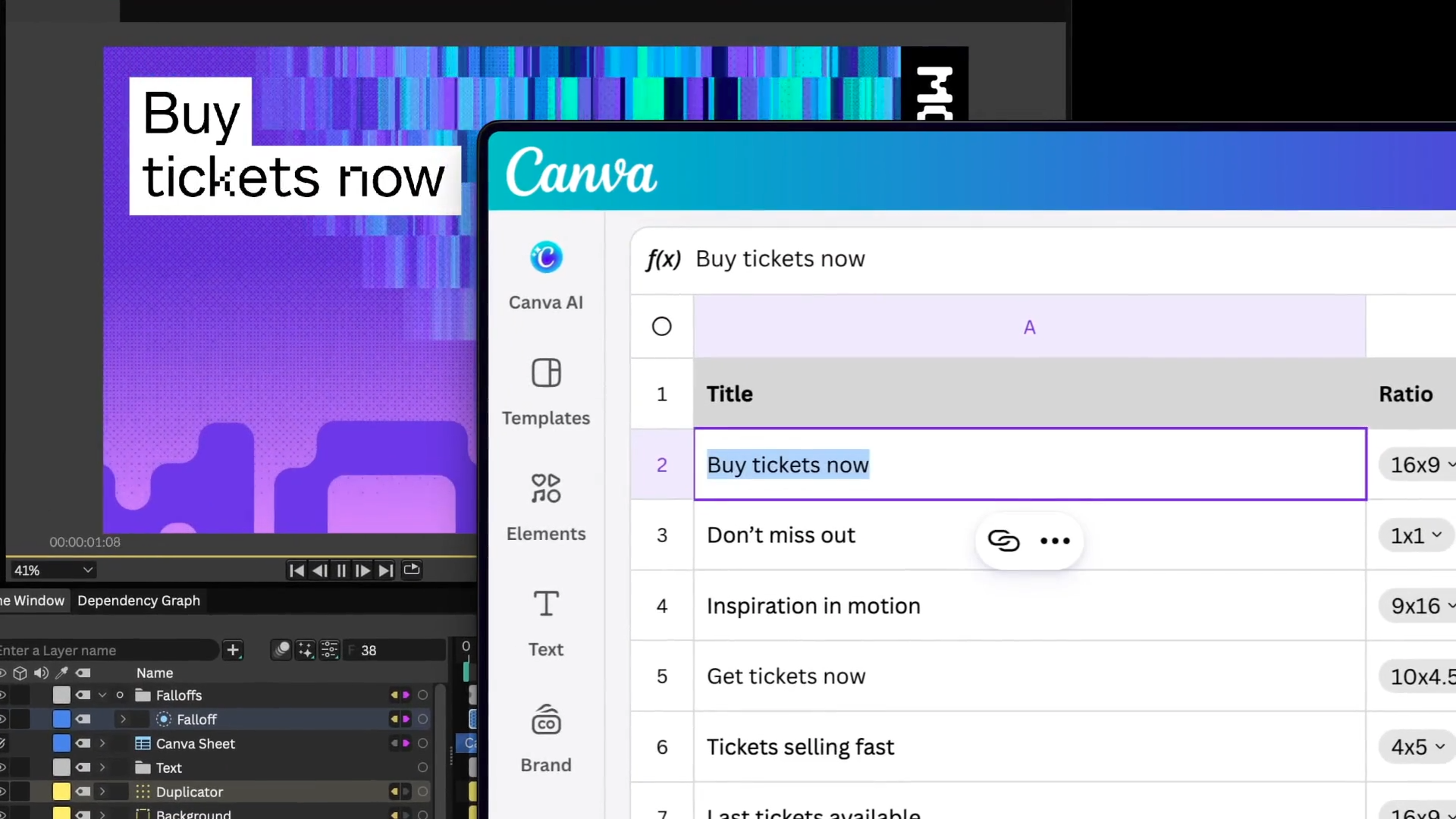
Where sensitive or private data is being used, access can be restricted by inviting specific users or setting the Access level via the Sheet's Share options.
Canva Sheet URL
To copy the URL for a Canva Sheet either:
- Under the Sheet's
Shareoptions, clickCopy link. - If using Canva in a browser, copy the URL directly from the address bar/omnibox of a browser tab.
Importing
To import a Sheet:
- Either:
- Right click in the Assets Window and choose Import Canva Sheet...
- Use the
File > Import Canva Sheet...menu item.
- Enter the
urlof the sheet into the dialogue window. - Hit
OK.
A Canva Sheet Asset will appear in the Assets Window.
Reference a Page
Where a Sheet contains more than one page/tab, a second dialogue will pop up asking which page to import when importing a Sheet.
Connect the Data
Dragging this Asset from the Assets Window into the Viewport or Scene Window will create a Spreadsheet Utility and connect the Asset to its File attribute.
Alternatively, manually create a Spreadsheet Utility and then drag the Canva Sheet Asset from the Assets Window into its File attribute.
Options
Right clicking on a Canva Sheet Asset provides the following options:
- Spreadsheet Settings - Define how Cavalry will interpret the data (the same settings are available for a CSV Asset):
- Delimiter - Set the symbol used to separate each cell within the data. Note - this must be set to
,(comma) for Canva Sheets Assets. It's possible for.csvdata to contain a different delimiter. - Quote - Set the symbol used to determine strings within the data.
- Decimal Separator - Set the symbol used to separate the integer part from the fractional part of a number. (e.g.
.in12.75) - Factorize - This must be checked when using the Factorize attribute on the Spreadsheet. Note - factorizing data may result in a performance hit.
- Delimiter - Set the symbol used to separate each cell within the data. Note - this must be set to
- Rename - Rename the Canva Sheet Asset.
- Reload - Reload the Canva Sheet data. This is required whenever the Canva Sheet is changed.
- Replace Canva Sheet - Replace the link from the current Canva Sheet to a different one.
- Open Canva Sheet in Browser - Open the linked Canva Sheet in a web browser.
- Delete - Remove the Canva Sheet Asset from the Scene.
Where columns contain cells with a mix of data types (strings/values/colours etc), the format may need to be specified within the Sheet in order for the contents of the cells to be 'correctly' interpreted. For example, the first cell below is a number so the column will be read as such but the second cell is not a valid number and so will not be read by Cavalry.
| Column |
|---|
| 28 |
| 11/345 |
In this example, these cells need to be set to 'Text' by selecting that column and then choosing the 'Text' option from the Number format dropdown in the tool bar along the top. This means they will be interpreted as strings when read by the Spreadsheet Utility. Note that this will mean that the number 28 in the first cell is no longer read as a number/value.