AI Automation with Claude
Intro
You can automate repetitive tasks in Cavalry by giving natural language instructions to an AI assistant.
Cavalry uses the Model Context Protocol (MCP)—an open standard that lets AI assistants communicate directly with apps—to receive instructions from your assistant and carry out tasks on documents.
Cavalry’s MCP server runs locally on your device and connects to supported AI assistants.
What you can do with MCP
Describe a task in your own words and your AI assistant will use MCP to carry it out—no manual steps, scripting, or deep knowledge of Cavalry’s interface required.
Typical uses include batch processing, file preparation, layer organisation, localisation, and making reusable custom tools/scripts.
Requirements
Before getting started, confirm the following are installed:
- Claude.
- Cavalry 2.8 or later.
Claude requires macOS Big Sur 11 or later.
Set up the MCP server
Connect the MCP server to your AI assistant.
Download the Cavalry by Canva MCP server.↓ Download- Unzip
cavalry-mcp-server.zipfrom the link above. - Open Claude.
- Open Settings by clicking on your name in the bottom left corner, or with Cmd/Ctrl + ,.
- In the side panel, select Desktop app > Extensions.
- Click the
Advanced settingsbutton. - Click the
Open extensions folderbutton at the bottom of the page. - Drag the unzipped
cavalry-mcp-serverfolder from the file system into the Claude Extensions folder opened on the previous step. - Quit and restart Claude.
- Open Settings by clicking on your name in the bottom left corner, or with Cmd/Ctrl + ,.
- In the side panel, select Desktop app > Extensions.
- Click
Configurefor Cavalry by Canva. - Click the toggle to enable the Extension.
Coming Soon...
- In Claude’s settings, select Connectors, then Browse connectors.
- Search for the Cavalry connector and install it.
- (Optional) Once installed, click the "Cavalry by Canva" row and review the Tool permissions. If you skip this step, the AI assistant may request permission when performing tasks.
Configure Cavalry
- Open the Preferences window.
- Check Enable MCP Server towards the bottom of the window.
Confirm the connection
- Make sure both Cavalry and Claude are running.
- In Claude, go
File > New Conversationand enter the following prompt: “Can you see the Cavalry MCP server?”
Cavalry and Claude must be running at the same time to communicate with each other.
Prompting an AI assistant
With the MCP server enabled, here are a few powerful ways to get started.
Example 1: Perform bulk actions
Connect all Shapes in your Composition to another Layer. Ask your AI assistant to connect all Shapes in order to ensure a consistent look. For example: “Add a Value Layer and connect it to the Corner Radius of all Rectangles in the active Composition.”
Example 2: Rename layers automatically
Keep the Scene Tree organized as your Scene grows. Your AI assistant can recognize what each Layer contains and rename them for you. For example: “Rename the layers in my Cavalry Composition.”
Example 3: Create a custom tool
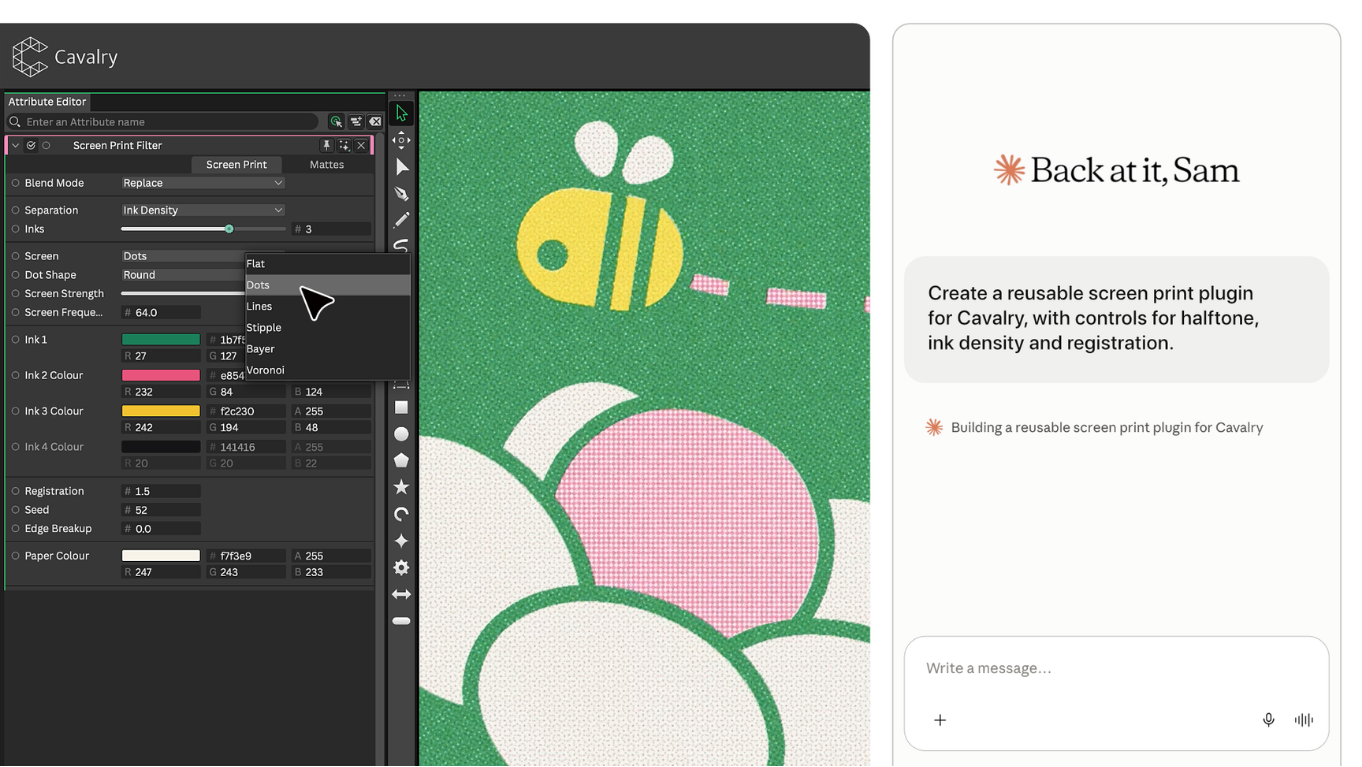
Build reusable tools tailored to your workflow. Describe the tool you want to create and include that it should have a UI. You can save what the AI assistant generates to the Scripts folder and reuse it later. For example: “Create a reusable screen print plugin for Cavalry, with controls for halftone, ink density and registration.”