Luminance Blur Filter
Intro
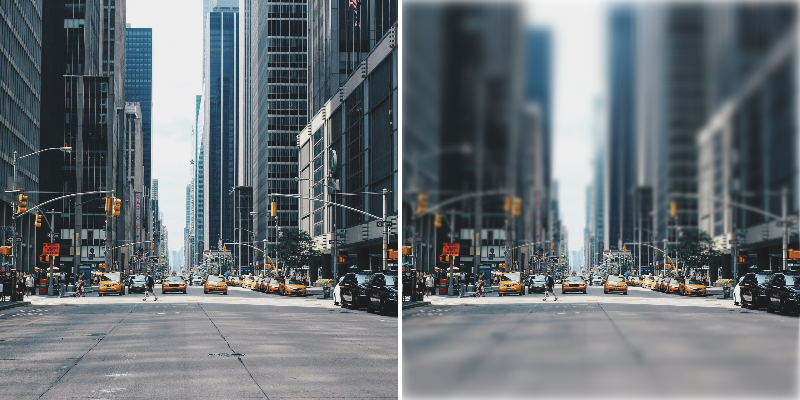
Blur one Layer based on the luminance values of another. For example, a Gradient Shader from one Shape can be used to drive the blur amount of another.
UI
Input Shape - Connect a Shape to sample the luminance from.
Maximum Blur - Set the amount of blur where luminance is 1 (white).
Minimum Blur - Set the amount of blur where luminance is 0 (black).
Invert Luminance - Invert the luminance of the Input Shape.
View Mode - Select the view rendered to the Viewport:
- Final Result - Show the resulting blur.
- Luminance - Preview the luminance values.
Example
- Create a Rectangle (Rectangle 1).
- Set its Size to
300,200. - In the Attribute Editor, click the
+button on Rectangle 1's Filters attribute and choose Luminance Blur. - Create a second Rectangle (Rectangle 2).
- Set its Size to
500,500. - Load Rectangle 2's Fill tab, click
 and choose Gradient Shader from the list.
 - Hide Rectangle 2.
- Connect rectangle2.id→luminanceBlur.inputShape.
- Increase the Luminance Blur's Maximum Blur.
Try rotating Rectangle 2 or select the Gradient Shader and then use its layer tool to adjust the gradient in the Viewport.
See other blur Filters:
Background Blur Filter→ Bilateral Blur Filter→ Fast Blur Filter→ Box Blur Filter→ Directional Blur Filter→ Gaussian Blur Filter→ Zoom Blur Filter→